Upload a 500x500 transparent PNG, keep Fit with transparent padding, then download 112x112, 56x56, and 28x28 PNG files for the manual Twitch emote upload slots.
Free online Twitch image tool
Twitch Emote Resizer
Resize one image into Twitch-ready 112x112, 56x56, and 28x28 emote files directly in your browser. The Twitch emote resizer keeps transparent PNG artwork, previews the tiny chat size, and lets you download each result or a ZIP bundle.
Browser tool
Twitch Emote Resizer Online
Upload an image to create Twitch-ready sizes.
streamer_tools
:
![28x28 Twitch emote chat preview]()
Upload a portrait or meme photo, choose Crop to square, preview the 28x28 chat result, and crop tighter if the face is still too small.
Switch Output set to Twitch badges when a logo or loyalty icon needs 72x72, 36x36, and 18x18 badge files instead of emote sizes.
Twitch size guide
Twitch emote sizes generated by the resizer
The tool creates the classic manual upload sizes for Twitch emotes and can also produce subscriber badge sizes. Use the table when you need to confirm which output belongs in each Twitch upload field.
| Asset | Required sizes | Best use | Notes |
|---|---|---|---|
| Twitch emote | 112x112, 56x56, 28x28 |
Subscriber emotes, follower emotes, chat emotes | Use 112px for the large upload slot and preview 28px for chat readability. |
| Twitch badge | 72x72, 36x36, 18x18 |
Subscriber badges and loyalty badge sets | Small badge sizes need strong silhouettes and very little text. |
| Auto-resize source | 112x112 to 4096x4096 |
Twitch's single-file auto-resize workflow | Start with a square transparent PNG under Twitch's current file limit. |
How it works
Resize a Twitch emote in three quick steps
The resizer is built for creators who already have art and only need the final Twitch files. It keeps the task short: upload, choose the fit mode, then download the exact sizes.
Upload your image
Choose a PNG, JPG, WebP, or GIF from your device. Transparent PNG artwork usually gives the cleanest Twitch emote result.
Pick the fit mode
Use transparent padding to preserve the original art, crop to square for close-up faces, or stretch only when distortion does not matter.
Preview and download
Check the 28x28 chat preview, review file sizes, download a single PNG, or save all Twitch emote resizer outputs as one ZIP.
Tool features
Built for Twitch emotes, not generic image resizing
A normal image resizer can change pixels, but a Twitch emote resizer needs to respect chat readability, tiny preview sizes, transparent backgrounds, and the exact file set creators upload.
Square-safe resizing
Fit, crop, or stretch artwork into a square canvas without guessing the final upload shape.
Real chat preview
Check the 28x28 result before upload, where tiny text and weak outlines usually fail.
Emotes and badges
Switch between emote sizes and subscriber badge sizes from the same upload.
Clean downloads
Download one PNG at a time or save every generated file in a single ZIP.
Private by default
Resize in your browser, so your source art does not need to leave your device.
Upload checks
See dimensions and estimated file size before you move to Twitch upload.
Upload fixes
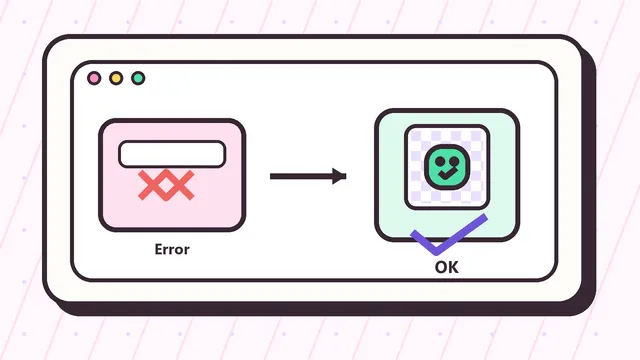
Common Twitch emote resizing problems
Many Twitch upload errors come from size, shape, file format, or unreadable tiny artwork. These checks help you decide whether to resize, crop, simplify, or export again.
My 112x112 Twitch emote is too large
Start from a clean PNG, avoid huge color gradients, and download the generated 112px file. If the file is still heavy, simplify shadows or reduce unnecessary texture.
The 28x28 emote looks blurry
Use thicker outlines, fewer tiny facial details, and stronger contrast. A Twitch emote resizer cannot recover detail that disappears at chat size.
My image is not square
Use the default fit mode to keep the full artwork with transparent padding, or crop when the subject should fill the square.
My animated GIF is hard to upload
Animated emotes need extra attention to frame count, dimensions, and total file size. Use the GIF guide page before resizing animation-heavy artwork.
Core resources
Related Twitch emote tools and guides
These supporting pages cover the long-tail jobs behind the main Twitch emote resizer: exact dimensions, badges, GIFs, upload errors, and turning artwork into an emote.
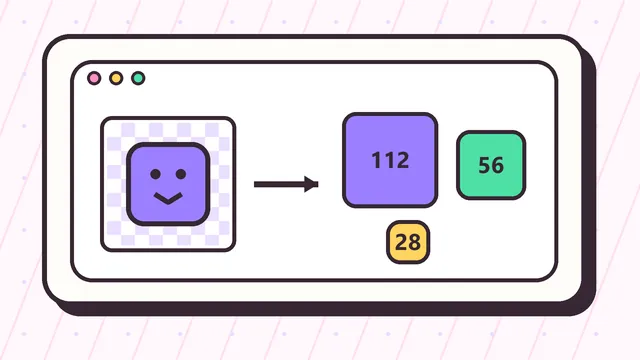 Sizes
Twitch Emote Size Guide
Exact Twitch emote and badge dimensions with upload notes.
Sizes
Twitch Emote Size Guide
Exact Twitch emote and badge dimensions with upload notes.
 GIF
Twitch GIF Emote Resizer
Animated emote size planning, file-size checks, and safer export settings.
GIF
Twitch GIF Emote Resizer
Animated emote size planning, file-size checks, and safer export settings.
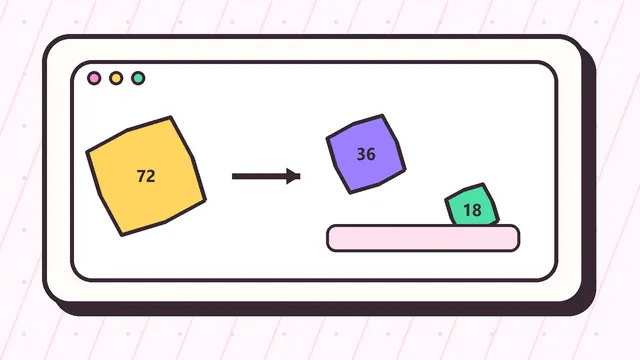 Badges
Twitch Badge Resizer
Create 72x72, 36x36, and 18x18 subscriber badge files.
Badges
Twitch Badge Resizer
Create 72x72, 36x36, and 18x18 subscriber badge files.
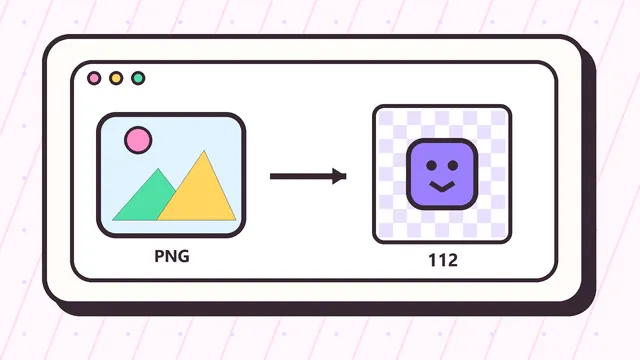 Artwork
Image to Twitch Emote
Turn a picture, drawing, or logo into a Twitch-ready emote.
Artwork
Image to Twitch Emote
Turn a picture, drawing, or logo into a Twitch-ready emote.
 Fix
Twitch Emote Upload Fix
Troubleshoot files that are too large, blurry, or rejected.
Fix
Twitch Emote Upload Fix
Troubleshoot files that are too large, blurry, or rejected.
Why creators need a dedicated Twitch emote resizer
Twitch emotes are tiny, but they are not simple. A creator may start with a 1000px illustration, a transparent PNG from an artist, a logo, a webcam cutout, or a meme image, then still need Twitch-ready files before upload. A dedicated Twitch emote resizer removes the guessing step by generating the exact 112x112, 56x56, and 28x28 outputs from one source image.
The important part is not only the pixel count. A usable Twitch emote must stay readable at 28x28 in fast-moving chat. Thin text, soft shadows, small fingers, and low-contrast facial details often disappear. That is why this Twitch emote resizer puts the chat preview near the output files instead of hiding it below the page. You can see quickly whether the resized emote still communicates the expression.
Best source image for Twitch emote resizing
For the cleanest result, start with a square image that has a transparent background and a strong centered subject. If your artwork is not square, the default fit mode adds transparent padding so the full design remains visible. If the image has empty borders and the face or icon is too small, crop mode can make the emote feel stronger in Twitch chat.
JPG files work, but they cannot preserve transparency. PNG is usually the best choice for finished emote artwork. WebP can also work well as a source format, while GIF files require more care because animation can increase file size quickly. If you are resizing a still emote, use the resizer above. If you are planning an animated emote, review the Twitch GIF emote resizer page before exporting.
How this emote resizer fits the Twitch upload workflow
Twitch supports workflows that involve either a source image for auto-resizing or manual upload slots for multiple sizes. Many streamers still prefer downloading the classic three-size set because it gives them direct control over the result. The 112px image is useful for the large display, the 56px file covers higher-density rendering, and the 28px file shows how the emote will appear in chat.
The same logic applies to subscriber badges, but the sizes are different. Badges need 72x72, 36x36, and 18x18 files, and the smallest size is even less forgiving than an emote. If you need badges, switch the output preset in the tool or open the Twitch badge resizer page for badge-specific advice.
FAQ
Twitch emote resizer questions
What size should a Twitch emote be?
The classic manual Twitch emote sizes are 112x112, 56x56, and 28x28 pixels. The homepage Twitch emote resizer generates all three from one source image.
Can I resize a non-square image for Twitch emotes?
Yes. Use fit mode to add transparent padding around the image or crop mode to fill the square. Fit is safer for full artwork, while crop often works better for faces and simple icons.
Does the Twitch emote resizer upload my image?
No. The resizing work runs in your browser with canvas processing. Your source image does not need to be uploaded to a remote server.
Can I make subscriber badges with this tool?
Yes. Change the output set to Twitch badges to create 72x72, 36x36, and 18x18 PNG files for badge uploads.
Why does my emote look bad at 28x28?
The source art may have too much detail for chat size. Use thicker outlines, stronger contrast, less text, and a tighter crop around the main expression.
Can this resize animated Twitch GIF emotes?
The browser tool is best for static PNG output. Animated GIF emotes need separate frame and file-size planning, which is covered on the Twitch GIF emote resizer page.
What file type is best for Twitch emotes?
Transparent PNG is usually best for static emotes because it keeps clean edges and transparent backgrounds. JPG works for rectangular photos but is rarely ideal for finished emote artwork.